

QuickBooks is a widely used accounting software by Inuit that helps small businesses to manage their accounting tasks. The QuickBooks Database Server Manager provides seamless access to company files. It plays a significant role in allowing multiple users to work on the same company file over a network. The error appears once the Database Server manager stops working or shows a network diagnostic failure message. “QBDBMgrN not running” issue interrupts the connection between QuickBooks and the server where company files are stored. This, in turn, slows down daily activities, the multi-user access stops, and users start getting error messages repeatedly. In this guide, we will discuss what this error indicates, the usual reasons behind this, and will also offer some solutions to restore it manually.
What is QuickBooks Database Server Manager Stopped Working Error?

QuickBooks Database Server Manager is a service that allows QuickBooks Desktop to work in multi-user mode by hosting company files on a server computer. It lets workstations connect to the main company file stored on the server. These types of errors occur after an update to QuickBooks, changes to the network, or when the service has been disrupted. The message ‘QBDBMgrN not Running’ or “Database Server Manager Network Diagnostics Failed, shows that QuickBooks cannot communicate with the server. Work stops instantly, and users remain limited to single-user mode, which affects team productivity and file access.
Read More: QuickBooks File Repair- Everything You Need To KnowReasons for QuickBooks Database Server Manager Stopped Working Error
QuickBooks Database Server Manager stopped working error can be caused by a variety of factors. Here are a few reasons why:
- Improper QBs DBXX services.
- Missing QuickBooks components.
- Incorrect Firewall settings.
- Disabled QuickBooks Database Server Manager.
Impacts of QBDBMgrN Error
The QBDBMgrN error creates multiple problems that affect companies’ daily accounting work. Common impacts include:
- Multi-user mode becomes unavailable across the network.
- Company files fail to open from the workstations.
- Network connectivity issues interrupt QuickBooks services.
- Firewall blocks QuickBooks communication with the server.
- The database server manager fails to detect the company files.
- Network (.ND) files stop working properly.
- Risk of data conflict increases in a shared environment.
These issues reduce work efficiency and delay accounting tasks, especially in offices that rely on shared QuickBooks access.
How to Fix QuickBooks Database Server Manager Stopped Working Error?
Several solutions will be discussed in this article, which may help you resolve the problem. Let’s analyze them:
Solution 1: Run QuickBooks File Doctor Tool
The QuickBooks file doctor tool tool helps in recovering your damaged file and also fixes issues related to the network. To fix QuickBooks Database Server Manager Stopped working issue you need to follow these steps:
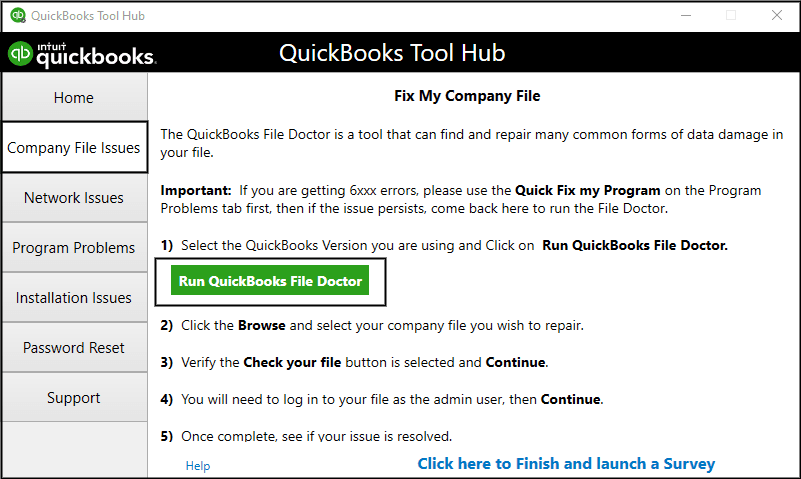
- Using the QuickBooks tool hub, select Issues with Company Files.
- Select Run the QuickBooks File Doctor, and it will take a few sec.
- If you can’t see the file, search for it.
- Go through your file and press Continue.
- Click on Next once you enter your QB’s admin password.
Solution 2: Upgrade your QuickBooks Database Server Manager
To solve this issue, you need to update your QuickBooks database server manager. Have a look at the instructions:

- From Windows, Start looking for QuickBooks.
- Tap on QuickBooks Database Server Manager and select Updates.
- Now, follow the on-screen prompts and restart your server at the end.
Solution 3: Configure QuickBooks Database Service
Sometimes the wrong setup of the QuickBooks database service might lead to a database server. So, you need to check if it is properly configured. See the steps given:
- Go to Search Programs and Files and find Services.
- Click on the Services option and hit QuickBooksDBXX service.
- Then choose Stop, and after pressing the service again, choose Properties.
- Next, switch to automatic startup.
- Select Log on and move Local Account to Local System.
- Now, from the Recovery option, click on Restart the Service.
Solution 4: Check the Version of QBs Database Server Manager

You must use the same version of QBs DBSM as your QuickBooks. Otherwise, it will help this error to prevail. To rectify it follow the procedure:
- Hold Windows + R and enter Services .msc in the Run window.
- Now, open a list of services that are installed.
- Navigate the QuickBooksDBXX service and verify if the last two digits match your QB desktop version.
Solution 5: Set up Windows Firewall

Windows firewall helps in preventing the local device from receiving or sending unauthorised network traffic. To check if it is properly set up or not, look for the instructions:
- Firstly, go to the Windows Start option.
- Now, open Windows Firewall and choose Advanced Settings.
- Click on Inbound Rules and tap on New Rule.
- Choose Port and then press Next and ensure TCP is selected.
Read Also: QuickBooks Repair Error 1334- Troubleshoot the ErrorSolution 6: Verify Hosting Settings

- On your computer, start working on QuickBooks.
- Move your cursor toward the files option. There, you will find ‘Utilities’ as an option. Select it and click on it.
- Select the “Host multi-user access” option after this. But instead of it, if there is a “ Stop hosting multi-user access” option, don’t select it.
- To ensure that hosting is enabled only on the server, repeat all the steps given above on each workstation.
Solution 7: Check and Repair the Company File
Where the existence of damaged or corrupted files in the system can prevent database server management from working, so to resolve this issue, the points to remember are as follows-
- Begin with Quickbooks desktop on your system.
- Click the File menu, and after this, select the Utilities option.
- Click on the icon Verify Data.
- Move to Files. If any issues are found, select the Utilities option. The Rebuild data icon is there, so click on it.
- To create a backup, follow the prompts and let the rebuild process complete correctly.
Solution 8: Adjust Windows User Permissions
Enabling crucial permissions on the Windows user account operating QuickBooks database server manager must be made sure to do this-
- Open the Run dialog box, and select Windows + R.
- On the search panel, you will find a box. In it, type services.msc and click on the enter key.
- Search for and Find QuickbooksDBXX.
- On the service icon, press shift + F10, and from there, go towards ‘properties.’
- Then, move toward the log-on option.
- Verify that the Local System account is selected as an option.
- Then, to restart the service, click ok and finalize the task.
Solution 9: Check the Strong and Stable Network Connectivity
- Open the Start menu in the windows.
- From there, select the Network and Sharing Centre tab.
- Then, change advance share settings must be selected.
- Next, find Network Discovery and enable it in its settings or activate the stage.
Conclusion
QuickBooks Database Server Manager is an important tool that helps keep your QuickBooks running smoothly. However, sometimes you may experience Network Diagnostics Failed errors. This can be frustrating, but there are a few methods you can try to resolve the issue. By following the steps in this article, you should be able to fix the problem and get QuickBooks Database Server Manager up and running again.