

The QuickBooks Error 15241 is an error related to issues in the Payroll functions. The issue will restrict the QuickBooks Desktop application from properly updating. It can occur due to the disabling of the File Copy Service of QuickBooks Desktop.
The QuickBooks Payroll software helps business owners, bookkeepers, and accountants to manage their business payroll process effortlessly and without any hassle. The error in the payroll generally occurs when the initial input data is wrong.
If you are also facing any of the issues and can not use the software properly, then read the whole article till the end. We have discussed the symptoms that generally users face, the cause that arises the problem, and also the solution to the QuickBooks update Error 15241. So let’s get into the article.
What is QuickBooks Error 15241?

Many factors lead to a payroll error. The damaged QuickBooks Desktop Installation or the corrupted Microsoft Windows Installer can trigger the error to arise. The error 15241 QuickBooks does not allow the user to conveniently use the QuickBooks Payroll function. You might face an error, usually while updating or installing the new version of payroll.
Symptoms of QuickBooks Error 15241
The user generally faces the following symptoms when facing the QuickBooks Update Error 15241. If you are struggling with some issue in your QuickBooks software, read the points below to identify the QuickBooks error code.
- Payroll Update Failure: You may receive an error message stating that the payroll update cannot be completed.
- System Slowness: The system may be slow while you are trying to update your payroll.
- QuickBooks Crash: During payroll update, QuickBooks can freeze or shut down unexpectedly.
- File Copy Service Disabled Message: You may receive an error text indicating that QuickBooks File Service has been disabled.
- Keyboard or Mouse Delay: You experience a delay in response when working inside QuickBooks on your keyboard or mouse.
When you notice such symptoms, check the QuickBooks software to ensure everything runs seamlessly.
Causes of QuickBooks Update Error 15241
It is important to know the causes before you apply troubleshooting. Identifying the exact cause saves your time and reduces confusion. The most common causes of Error 15241 include:
- Disabled File Copy Service: The QuickBooks “File Copy Service (FCS)” is responsible for installing the payroll updates. When this service is disabled in Windows settings, QuickBooks cannot copy or replace necessary update files, causing payroll failure.
- Corrupt Windows File: Corrupted Windows files hamper QuickBooks processes. This disruption impacts the communication between the operating system and payroll components.
- Incomplete QuickBooks Installation: A damaged installation file can stop your payroll-related features from functioning properly.
- Blocked by Antivirus or Firewall: In many cases, third-party antivirus and firewall programs mistakenly block payroll update files, which causes an error.
- Corrupted Download File: If the payroll update file is corrupted, installing it can cause update errors.
- Malware or Trojan Attack: Harmful malware can modify, delete, or damage essential QuickBooks files. When payroll-related components are affected, Error 15241 appears during update.
Resolve QuickBooks Error 15241
We have discussed the causes and symptoms of the QuickBooks Error 15241. Now it is time to look for the solution to the error. So without further ado, let us directly jump into it the possible solutions for error 15241 provided by our technicians.
Enable QuickBooks File Copy service (For Windows 8,7 and Vista Users)
Error 15241 is commonly caused by a disabled QuickBooks File Copy Service (FCS). Windows 7,8 and Vista systems sometimes stop this service due to permission or configuration changes. Once you enable and start the service Quickbooks regains the ability to install payroll updates properly.

If you are a user of Windows 7/ 8/ or Vista, then you should follow the following steps to solve the problem on your system.
- The first step is to close the QuickBooks Desktop application.
- Click on the Windows Start button and then tap on the Computer option.
- Choose the Manage tab.
The user of all the versions can follow the steps up to these; after that, we have different steps for different versions of Windows. So read the steps of the version that you are using.
Restart and Configure FCS Properly (For Windows 10 Users)
This solution is useful for Windows 10 because system updates sometimes change service permissions automatically. This stops File Copy Services and blocks the payroll installation. Restarting and configuring it restores proper background functionality.
The user who is facing the QuickBooks error 15241 Windows 10, follows the steps to resolve the problem:
- Firstly, you have to tap on the option of Services, and then from the left pane tap on the Applications.
- Click on the Services from the right pane.
- Double-click on the Intuit QuickBooks FCS.
- Tap on the Start option and choose the OK option.
- Now again open the software QuickBooks Desktop.
- Download the QuickBooks Desktop product.
- Lastly, update the latest payroll tax tables.
For Windows XP Users:
The users of Windows XP should follow the steps below to solve the QuickBooks error 15241.
- The first and important step before solving the error is to close or exit from the QuickBooks Desktop.
- Go to the Desktop and then right-click on the option of My Computer and choose Manage from the list.
- The above steps will lead you to Open Computer Management.
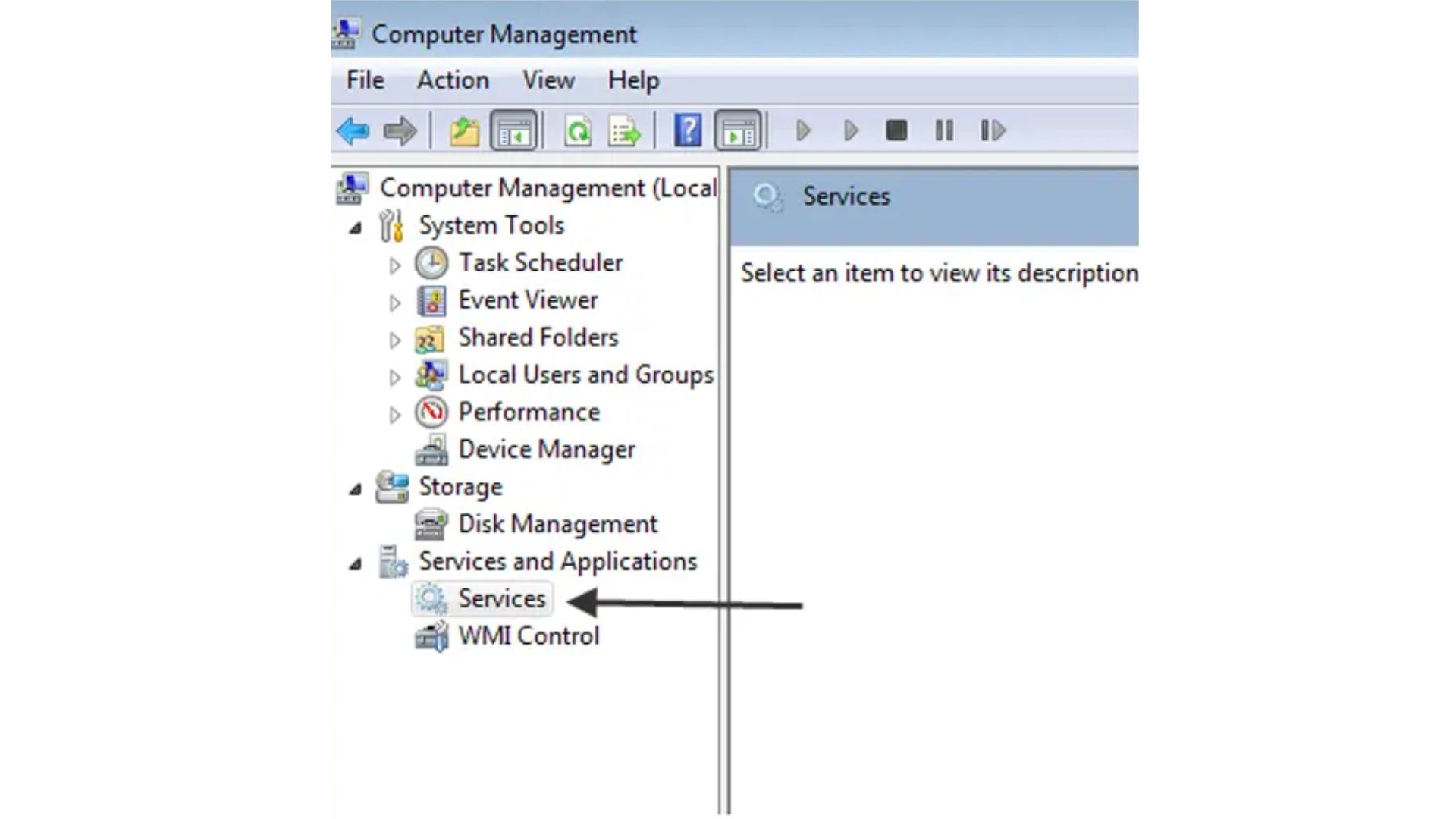
- Click on the option Services from the Services and Applications tab to open the Services Windows.
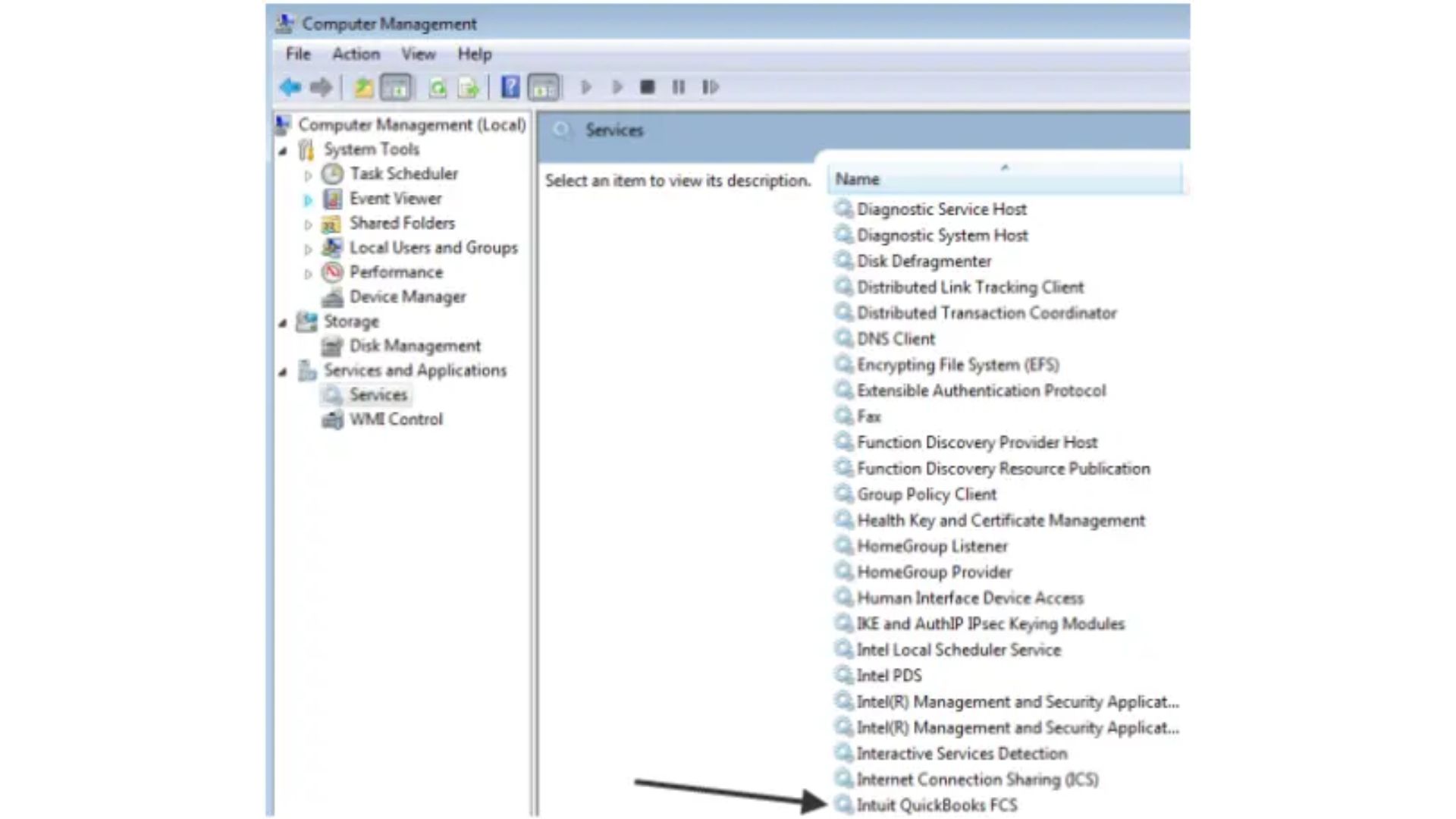
- Now scroll down and look for the option “Intuit QuickBooks FCS.” It will take you to the QuickBooks FCS Properties window.
- Tap the General Tab and choose the Startup option.
- Tap the Manual option in the drop-down list.
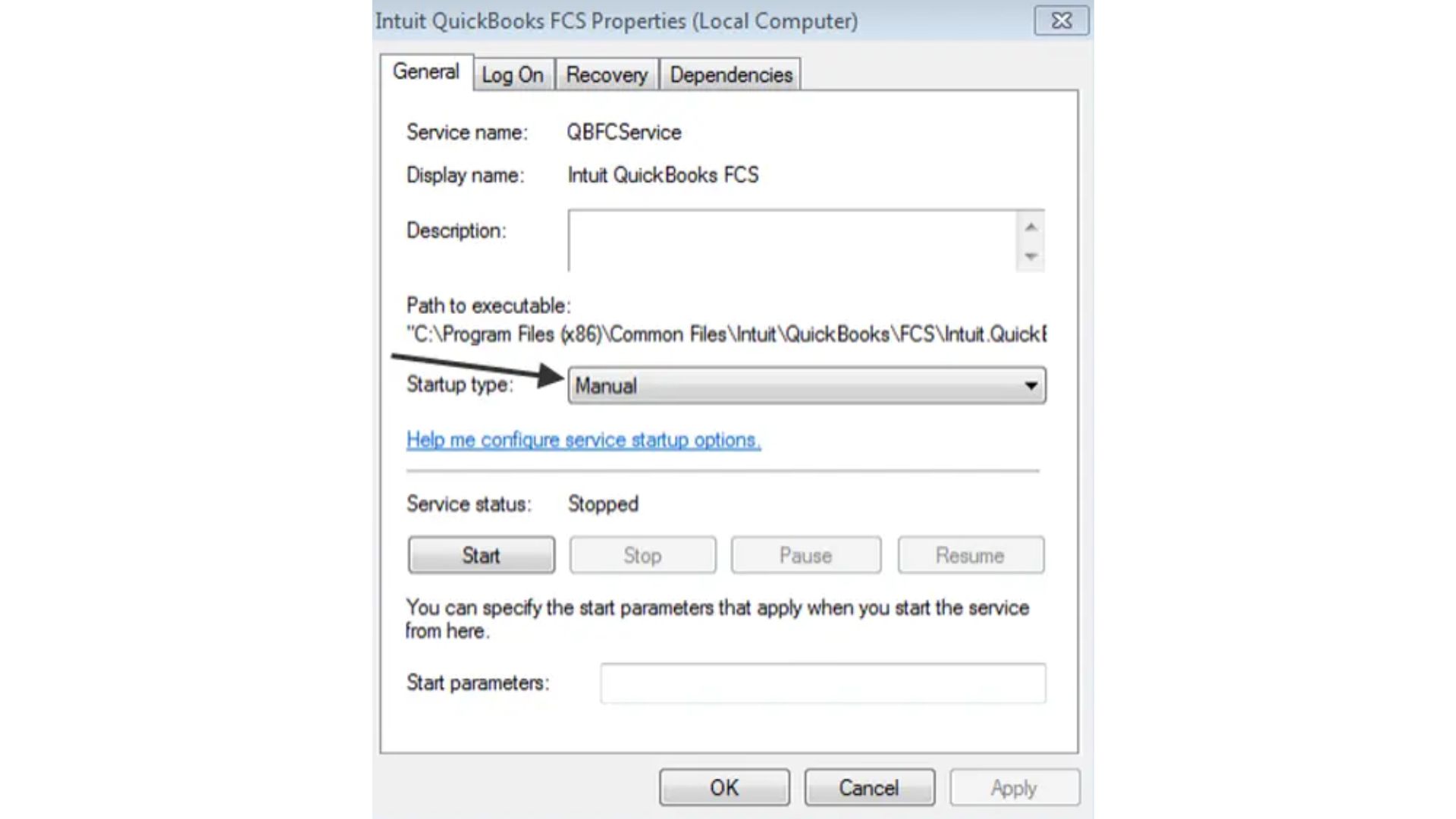
- Click on the OK button after following the steps.
- Open the software QuickBooks Desktop again.
- Update to the latest version of QuickBooks Desktop.
- Make sure that you have updated the Payroll tax tables.
- Go to the options Employees on the header menu and tap on the Get Payroll Updates from the drop-down list.
- Choose the tab Update.
- During the downloading process, you will get a displayed message that says, “A new tax table and/ or updates to your payroll tax forms have been installed on your payroll tax forms have been installed on your computer.”
- At the end, tap on the OK option to finish the process and read about the changes on the screen.
Also Read: 5 Simple Methods to Resolve Error 15106 QuickBooksAlternative Solutions:
If the solutions listed above prove ineffective, the following alternatives may be tried:
Solution 1: Use the Payroll Update CD
At times, payroll updates fail because the download file gets corrupted due to an unstable internet or a firewall interruption. In such cases, using the Payroll Update CD becomes a reliable alternative. By completing this process, the payroll components will be installed properly.
- Insert the Payroll Update CD into your system.
- Open QuickBooks Desktop.
- Visit the Employee menu and select Get Payroll Updates.
- Browse and select the update.dat file from the CD drive.
- Click OK and proceed with the installation prompts.
- Restart QuickBooks after completion and check the payroll update status.
Solution 2: Use the QBWin.log File
The QBWin.log file stores detailed technical information about program activities and update failures. You can review this file to identify the exact service causing the issue. This method helps to locate hidden issues that normal troubleshooting cannot detect.
- Open QuickBooks Desktop.
- Click F2 on your keyboard to open the product information window.
- Locate the file path for QBWin.log.
- Open the file using Notepad.
- Scroll to the latest entries and look for payroll-related error messages.
- Use the error details to correct the mentioned issues.
Solution 3: Refresh Your Payroll Connection
Payroll updates sometimes fail because the subscription key does not sync properly with the Intuit servers. Refreshing the payroll connection can help to revalidate your service key and restore proper communication. After completing this process, QuickBooks reconnects to payroll services and allows updates to install normally.
- Open QuickBooks Desktop.
- Click on the Employees menu.
- Select My Payroll Service Key.
- Select your service key and click Edit.
- Click Next and follow the prompts to revalidate the subscription.
- Finish the process and restart QuickBooks.
Solution 4: Download the QuickBooks tool hub
When the issue is not related to the File Copy Service, you can use the QuickBooks Tool Hub’s repair tools to resolve payroll update issues. In QuickBooks Tool Hub, you can get repair tools that fix program, installation, and network-related issues.

You must go to the Intuit website to access the download link for the QuickBooks tool hub.
- To save the installation file, locate and click the download link. You can browse to a custom area or save it as a regular one.
- The download will be successful once the file and storage location have been selected.
- Now, run the QuickBooks Tool Hub executable file to install the application.
- Abide by the installation guidelines and accept all terms and conditions.
- All you have to do is set up and use QB Tool Hub according to your needs.
The QuickBooks tool hub has several divisions and tools, which are as follows:
- Company file issues: Use the Quick Fix My File & QB File Doctor programs if the company file has issues or the data is corrupted. If necessary, you can also seek assistance from a file doctor to fix any linked problems, such as corrupted data.
- Network issues: Whenever a network issue arises, it prevents several users from connecting to, installing, or updating the internet. Consequently, the server computer’s QuickBooks network diagnostic tool was used.
- Program issues: The tools in the program issue area can resolve QuickBooks freezing, lagging, crashing, or malfunctioning issues. Available tools, such as PDF repair tools, QuickBooks Print, and the Fix My Program tool, can also help you eliminate frequent PDF and printing problems.
- Installation problems: There are several reasons why QuickBooks Desktop may encounter installation and uninstallation problems. The QuickBooks install diagnostic tool, included in the installation issue section, helps resolve these issues and guarantees smooth processes.
- Password reset: The automatic password reset tool can help you if you want to change the admin password.
- Help and support: Contact QuickBooks experts from this part of the QuickBooks tool hub who cannot fix typical issues.
- Advanced tools: Use Windows shortcuts to resolve typical QuickBooks issues more efficiently.
Solution 5: Switch to selective start-up mode
You can apply selective startup mode to identify whether third-party applications or antivirus programs are blocking the payroll updates. This method starts Windows with limited services, reducing interference:

- Start by hitting the shortcut window + R or by searching for the run window in the Start menu.
- Type msconfig into the run window on the desktop and press Enter.
- Select the “switch to selective start-up box” option in the general tab. Additionally, choose the load system services checkbox.
- Next, select “Hide All Microsoft Services” from the services menu.
- Press the “disable all” button.
- Next, uncheck the box that says “Hide All Microsoft Services.“
- Additionally, choose the Windows installation from the list of services.
- Finish by using the system configuration panel to restart the device.
- After changing to this mode, you can carry out the operations generating the error. I hope they won’t bother you anymore.
Once this is finished, use the exact instructions below to go back to normal mode:
- Pressing the windows & R keys simultaneously will bring up the run windows.
- Press Enter after typing msconfig.
- To operate QB desktop without disruptions, choose the regular mode and restart your device.
Solution 6: Update QuickBooks Desktop
Outdated QuickBooks software can create compatibility issues with payroll updates. This confirms that your software contains the latest patches and security improvements.

- Firstly, tap on the option “Help” and then select ‘Update QuickBooks Desktop.’
- After that, look for the tab “Option” and click on it.
- Hit the “Yes” button to automatically update.
- Then click the Close tab.
How to Prevent QuickBooks Error 15241?
Preventing QuickBooks Desktop error 15241 requires regular system care and proper payroll management. You should always keep your QuickBooks updated to the latest available version so that new patches and security fixes can be installed correctly. We strongly recommend our users run QuickBooks as an administrator to ensure complete system permissions during the payroll updates. Firewalls and the Antivirus settings must allow the QuickBooks services, especially the File Copy Service, to run without any restrictions.
You can also schedule routine Windows updates to avoid compatibility issues. A stable network connection plays an important role in preventing the corrupted payroll download. Verify your payroll subscription and always keep backup copies of your company files. Consistent maintenance reduces the chances of payroll interruptions significantly.
When to Ask for Professional Help for QuickBooks Error 15241?
QuickBooks Error 15241 sometimes persists even after applying the basic troubleshooting. If the payroll update issues continue to fail, you should consider taking professional assistance. Frequent system crashes, repeated error messages or damaged company files need professional examination. Experts help you to identify the issue without risking your business data.
Persistent registry damage or hidden malware can also cause recurring errors that require advanced repair tools. You deserve accurate payroll processing without delay or stress. Our experts help in identifying the root cause and applying safe, long-term solutions so that your payroll operations continue without further disruption.
Conclusion
If you are still getting the error 15241, then try to contact the QuickBooks customer service of the software. You can access the Helpline number of QuickBooks from the official website of Intuit QuickBooks. We have tried to cover all the related points regarding the QuickBooks payroll update error 15241. Hopefully, the article was helpful and informative for you.